Best Monitors for Working From Home
A good monitor is the cheapest upgrade to a workday you spend eight hours staring at. The specs that reduce eye strain and clutter are not the ones stores put in the headline.
Written by the DealNook team · Updated October 2026
Size and resolution, matched
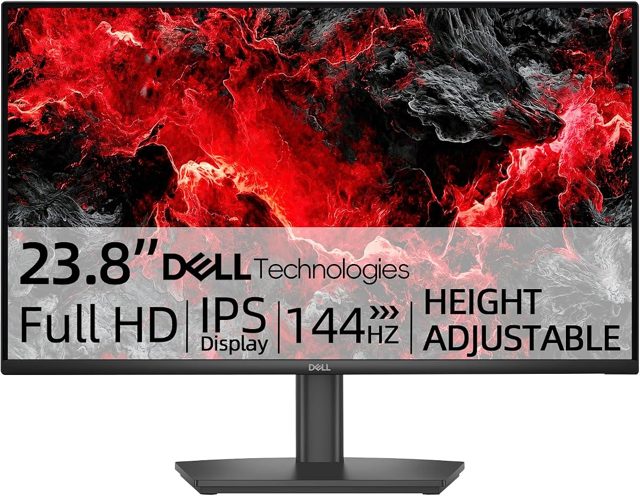
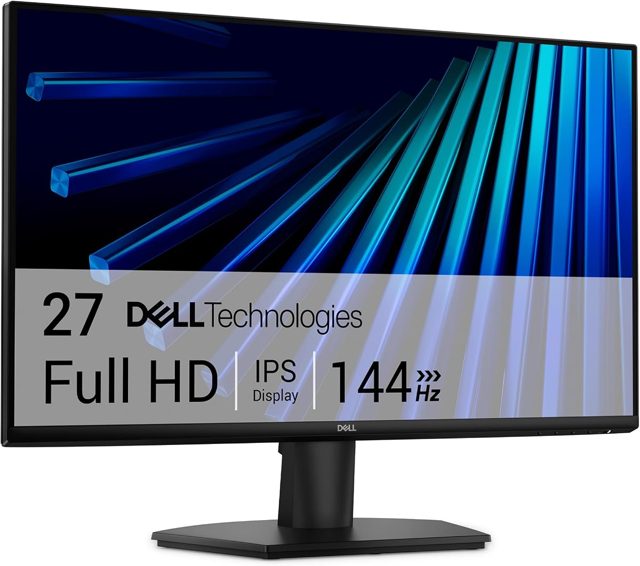
Size and resolution have to move together. A 27-inch monitor wants 1440p (QHD); at 1080p that same 27 inches looks soft because the pixels are spread thin. A 24-inch is fine at 1080p. For 4K, 27 to 32 inches is the range where the extra pixels are worth it. The common mistake is buying a large screen at low resolution and getting a big, fuzzy picture. Match them: 24-inch/1080p, 27-inch/1440p, 32-inch/4K.
Panel type decides color and angles
IPS panels give accurate color and wide viewing angles and are the right default for office work and anything visual. VA panels show deeper blacks and higher contrast, good for a dim room, but shift color when viewed off-center. TN panels are cheap and fast but wash out badly off-angle and should be avoided for a work screen you glance at from the side. For most home offices, IPS is the clear pick.
One screen or two, and ultrawide
Two monitors or one ultrawide both solve the same problem: room for more windows. Dual monitors are cheaper and let you angle each one, but you work around the bezel seam in the middle. An ultrawide (34-inch, 3440x1440) gives seamless width and suits anyone who keeps many windows side by side, at a higher price. Pick dual for budget and flexibility, ultrawide for a clean single surface.
Ergonomics beat extra specs
The feature that protects your neck is a stand that adjusts height, tilt, and ideally swivel. Many cheap monitors tilt only, forcing you to prop them on books to reach eye level. Check for a VESA mount (100x100mm) so you can add an arm later even if the stand is basic. Eye-level top-of-screen, an arm's length away, is the ergonomic target, and a good stand is what gets you there without a stack of books.
Ports, refresh, and eye comfort
Confirm the monitor has the port your laptop uses — many now charge a laptop over a single USB-C cable, which removes a power brick from the desk. A 75Hz or higher refresh is a small but real comfort upgrade over 60Hz for scrolling, though gamers are the only ones who need 120Hz-plus. Flicker-free backlighting and a low-blue-light mode genuinely reduce eye fatigue over a long day and cost nothing extra on most modern panels.
| Size | best resolution | note |
|---|---|---|
| 24-inch | 1080p (FHD) | Budget, sharp enough |
| 27-inch | 1440p (QHD) | The work sweet spot |
| 32-inch | 4K (UHD) | Great for detail work |
| 34-inch ultrawide | 3440x1440 | Replaces dual monitors |
What a fair price looks like
Solid 1080p/1440p
IPS, adjustable stand, USB-C on some. Covers most work.
27" QHD or entry 4K
Better panel, USB-C charging, ergonomic stand.
4K or ultrawide
Large, color-accurate, single-cable. For detail or multitasking.
Common questions
What size monitor is best for working from home?
A 27-inch at 1440p is the sweet spot for most desks — big enough for two windows side by side, sharp at that resolution, and not so large you turn your head. Pair 24-inch with 1080p and 32-inch with 4K.
Is 4K worth it for office work?
For spreadsheets, documents, and browsing, 1440p is plenty and cheaper. 4K is worth it for detailed visual work like photo editing or if you want the crispest text and sit close. Below 27 inches the difference is hard to see.
Two monitors or one ultrawide?
Dual monitors are cheaper and let you angle each screen, with a bezel seam in the middle. An ultrawide gives one seamless surface for side-by-side windows at a higher price. Choose by budget and whether the center seam bothers you.
Does a USB-C monitor matter?
It can charge your laptop and carry video over a single cable, removing the power brick and a second cord from your desk. For a laptop-based setup it is one of the most useful features to look for.